Getting started
Create your free account and understand how rawcv works before you dive in.
Create a free account
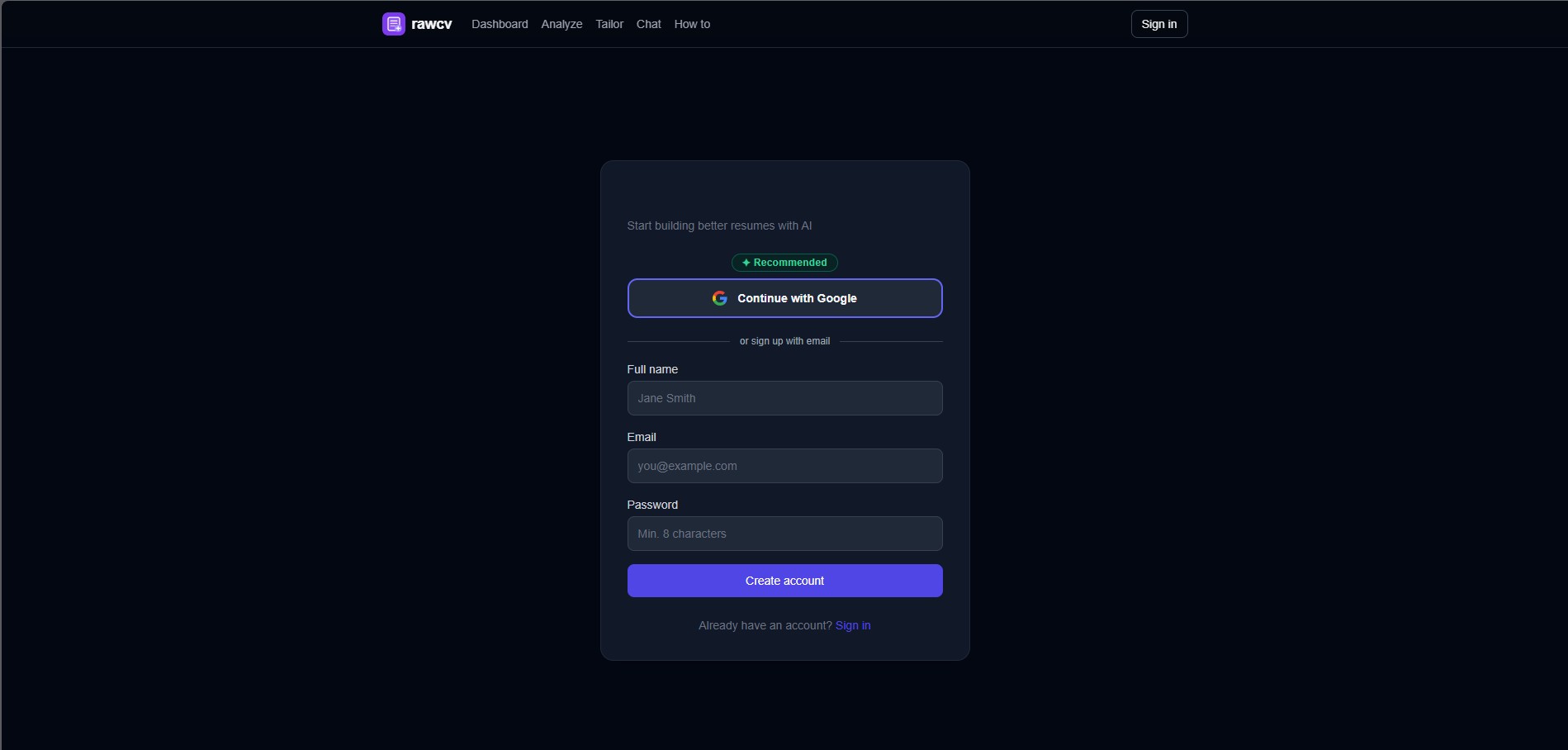
Go to rawcv.com/analyze and sign up with your email address. No credit card required.
Once registered you receive 20 free credits instantly. Credits are consumed per AI operation so you can run several analyses before needing to top up.
Understand the credit system
rawcv uses a credit-based model so you only pay for what you use. Here is what each action costs:
| Action | Credits used |
|---|---|
| Parse / upload resume | 0.5 - 1 |
| ATS score analysis | 1 |
| JD relevance check | 1 |
| AI suggestions | 1 - 2 |
| Resume enhancement | 1 - 2 |
| Tailor resume to JD | 2 |
| Chat message (build/edit) | 0.5 - 1 |
| PDF download | Free |
Navigate the app
The top navigation bar gives you access to all tools:
- Dashboard - overview of your resume and quick actions
- Analyze - ATS score, JD match, AI suggestions, enhancement, and theme picker
- Tailor - rewrite your resume for a specific job description
- Chat - build or edit your resume conversationally with AI

Upload a resume
The fastest way to get started - upload your existing PDF or DOCX and rawcv parses it instantly.
Go to the home page or dashboard
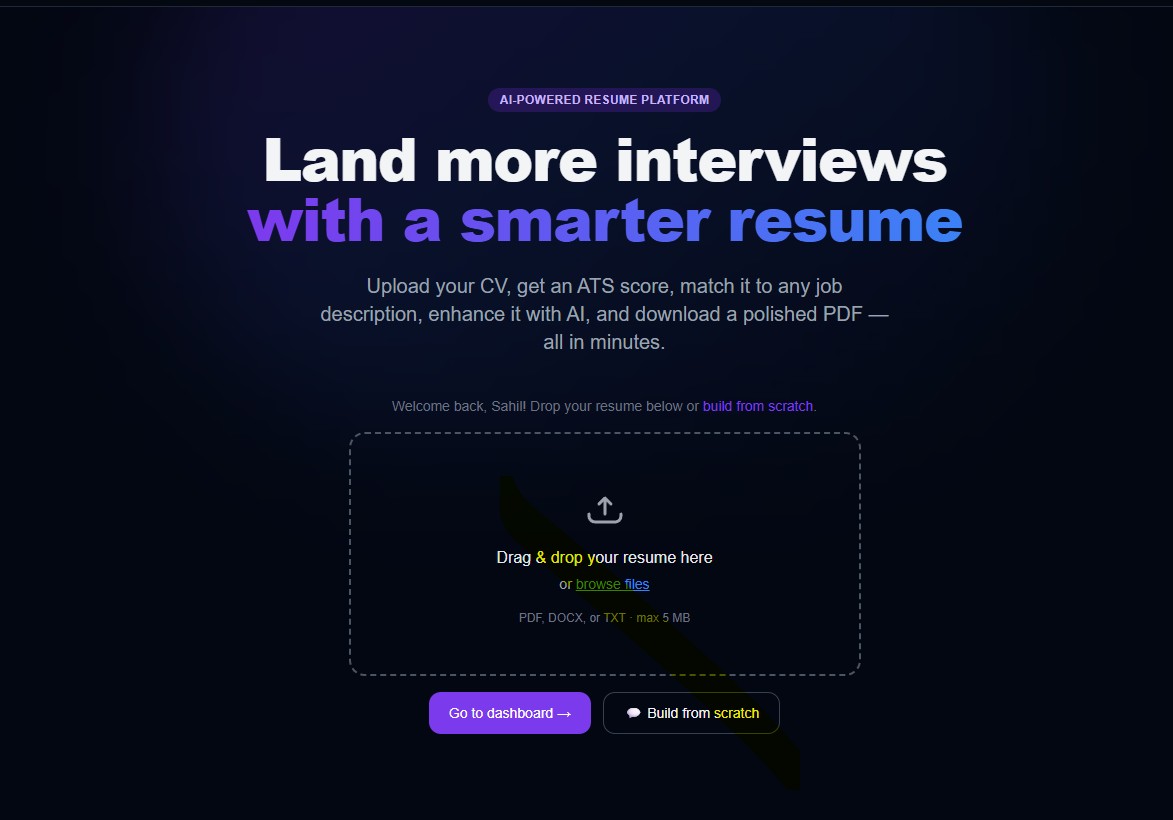
From the home page, scroll to the upload area in the hero section. If you are already logged in, the uploader appears immediately after the welcome message.
Drag and drop or click to browse
Drag your resume file directly onto the upload zone, or click Browse files to open a file picker.
Supported formats: .pdf, .docx, .txt up to 5 MB.
Wait for parsing to complete
rawcv extracts your contact info, work experience, education, skills, and summary automatically. This takes 3-10 seconds depending on file complexity.
Review the parsed resume
Once parsed you are redirected to the Analyze page. The right panel shows a live preview of your resume rendered in the selected theme.
Check that your name, contact details, and work history look correct. If anything is missing or wrong, use the Chat tool to fix it.
Build a resume from scratch
No existing resume? Use the AI chat interface to build one section by section through a conversation.
Open the Chat tool
Click Chat in the top navigation, or click Build from scratch on the home page.
The chat interface opens in build mode - the AI will guide you through creating each section of your resume.
Answer the AI's questions
The AI starts by asking for your name and contact details, then walks you through:
- Professional summary or objective
- Work experience (company, role, dates, responsibilities)
- Education (degree, institution, graduation year)
- Skills (technical and soft skills)
- Optional: certifications, projects, languages, awards
Type naturally - you do not need to follow a rigid format. The AI extracts structured data from your answers.
Watch the live preview update
As you provide information the resume preview on the right updates in real time. You can see exactly how your resume will look as you build it.
Edit any section mid-conversation
Made a mistake? Just tell the AI: "Change my job title at Acme Corp to Senior Engineer" or "Remove the Python skill". It will update the resume immediately.
Finish and go to Analyze
When you are happy with the content click View Analysis in the header. You will be taken to the Analyze page where you can run ATS scoring and get AI suggestions.
ATS score check
Find out how well your resume passes Applicant Tracking Systems and exactly what to fix.
Over 75% of resumes are rejected by ATS software before a human ever reads them. rawcv runs the same checks that enterprise ATS platforms use and gives you a score out of 100 with specific, actionable issues.
Open the ATS Score tab
From the Analyze page, click the ATS Score tab (the first tab, marked with a chart icon).
Click Run ATS Analysis
Click the blue Run ATS Analysis button. The analysis takes 5-15 seconds.
Read your score and issues
You will see a score out of 100 with a colour-coded breakdown. Issues are grouped into categories:
- Critical - missing sections (contact info, work experience, education)
- Warnings - weak formatting, missing dates, vague bullet points
- Suggestions - keyword density, action verb usage, quantified achievements
Fix the issues and re-run
Each issue includes a plain-English explanation of what is wrong and how to fix it. Common fixes include:
- Adding a professional summary section
- Including start and end dates for every job
- Starting bullet points with strong action verbs (Led, Built, Increased)
- Adding measurable results such as "Reduced load time by 40%"
Use the Chat tool or the Enhance tool to apply fixes, then click Re-run analysis to see your updated score.
AI suggestions
Get 3-15 targeted improvements covering action verbs, quantified achievements, and section completeness.
Open the Suggestions tab
On the Analyze page, click the Suggestions tab.
Click Get AI Suggestions
Click the violet Get AI Suggestions button. The AI reads your entire resume and generates targeted improvements in 5-20 seconds.
Review each suggestion
Suggestions appear as cards. Each card shows:
- The section it applies to (e.g. Work Experience, Summary)
- The original text with the problem highlighted
- The suggested replacement
- A brief reason explaining why the change improves your resume
Accept or reject suggestions
Click Accept to apply a suggestion. The live preview on the right updates immediately.
Click Reject to dismiss a suggestion you disagree with. You can always re-run to get a fresh set.
Undo a change
Changed your mind? Click the Undo button in the top-right of the Analyze page to revert the last accepted suggestion.
Enhance your resume
Strengthen weak bullet points and your summary with stronger language - no job description required.
The Enhance tool is different from Suggestions. Instead of pointing out problems it rewrites your existing content with stronger action verbs, more specific language, and a more professional tone while keeping your facts intact.
Open the Enhance tab
On the Analyze page, click the Enhance tab.
Click Enhance Resume
Click the orange Enhance Resume button. The AI rewrites your bullet points and summary in 5-20 seconds.
Review the enhanced content
Each enhancement is shown as a before/after comparison. The original text appears in grey and the enhanced version in violet.
Accept the enhancements you like
Accept individual enhancements or use Accept all to apply everything at once. The resume preview updates in real time.
Job description relevance check
Paste any job description and instantly see how well your resume matches - with missing keywords highlighted.
Recruiters spend an average of 7 seconds on a resume. If your skills and experience do not mirror the language in the job posting you are invisible. The JD Match tool scores your resume against a specific job description and tells you exactly what is missing.
Open the JD Match tab
On the Analyze page, click the JD Match tab.
Paste the job description
Copy the full job description from the job posting - including the responsibilities and requirements sections - and paste it into the text area.
Click Analyze Relevance
Click the indigo Analyze Relevance button. The analysis takes 5-15 seconds.
Read your relevance score
You will see a relevance score out of 100 along with:
- Missing keywords - specific words from the JD that do not appear in your resume
- Missing skills - technical or soft skills the employer wants that you have not mentioned
- Recommendations - specific sections where you should add the missing content
Act on the missing keywords
For each missing keyword or skill, decide whether it genuinely applies to your experience. If it does, add it naturally to the relevant section using the Chat tool or by accepting an AI suggestion.
Go to Tailor for a deeper rewrite
If your score is below 60 or you want a more thorough rewrite, click Tailor resume to use the dedicated Tailor tool which rewrites your entire resume for the specific job.
Tailor your resume to a job
Automatically rewrite your resume to match a specific job description - keywords, tone, and structure all optimised.
The Tailor tool goes further than the JD relevance check. Instead of just telling you what is missing it rewrites your resume to incorporate the right keywords and reframe your experience in the language the employer is looking for.
Open the Tailor page
Click Tailor in the top navigation, or click Tailor resume from the JD Match results.
Paste the job description
Paste the full job description into the text area. The same JD you used for the relevance check will be pre-filled if you navigated from there.
Click Tailor Resume
Click the blue Tailor Resume button. This costs 2 credits because the AI rewrites multiple sections simultaneously. The process takes 10-30 seconds.
Review the changes diff
The left panel shows a diff view - every change the AI made is highlighted:
- removed text - original content that was replaced
- added text - new content the AI inserted
Accept or reject individual changes
Review each change in the diff. Accept the ones that accurately represent your experience and reject any that overstate your skills or do not fit your voice.
Download the tailored resume
Once you are happy with the changes click Download PDF in the top-right. Create a separate tailored version for each job you apply to.
Themes and downloading your PDF
Pick a visual style and download a polished, ATS-safe PDF resume in one click.
Open the Theme tab
On the Analyze page, click the Theme tab. You can also access the theme picker from the Chat page by clicking Change theme above the preview.
Choose a theme
rawcv includes 8 professionally designed themes:
Classic
Clean serif, traditional
Modern
Sans-serif, colour accents
Minimal
Maximum whitespace
Executive
Bold header, formal
Creative
Sidebar, colour blocks
Navy
Dark navy header
Sharp
Geometric, high contrast
Terra
Warm earth tones
Preview in real time
Clicking a theme card instantly updates the resume preview on the right. No need to save - the selection is applied immediately.
Download your PDF
Click the Download PDF button in the top-right of the Analyze or Tailor page. The PDF is generated server-side and downloads automatically.
PDF downloads are free - they do not consume credits.
100% Free
rawcv is completely free to use. No credits, no subscriptions, no hidden fees.
No account needed
Just upload your resume and start analyzing. No sign-up, no credit card, no strings attached.
All features included
ATS scoring, JD matching, AI suggestions, cover letter builder, PDF downloads — everything is free and unlimited.
Supported by ads
rawcv is supported by Google Ads. You may see ads on some pages — this helps keep the service free for everyone.
Frequently asked questions
Quick answers to the most common questions about rawcv.
- Is rawcv free to use?
- Yes — rawcv is completely free. No account needed, no credits, no subscriptions. Just upload and analyze.
- Does rawcv store my resume?
- No. Resume data is held in your browser session only. We do not permanently store your resume content on our servers. If you close the tab or refresh you will need to re-upload.
- What file formats does rawcv accept?
- rawcv accepts PDF, DOCX, and TXT files up to 5 MB. For best results use a single-column PDF without tables or text boxes.
- Can I use rawcv on mobile?
- Yes - rawcv is fully responsive. The chat, analysis, and download tools all work on mobile browsers. The split-panel layout on the Analyze page collapses to a single column on small screens.
- How accurate is the ATS score?
- rawcv combines rule-based checks (missing sections, date formatting, keyword density) with AI analysis. The score is a strong indicator of ATS compatibility but is not a guarantee - different ATS platforms have different rules.
- Can I undo changes?
- Yes. The Undo button in the Analyze and Chat pages reverts the last accepted change. You can undo multiple times to step back through your edit history.
- Do credits expire?
- There are no credits — rawcv is completely free with unlimited usage.
- What AI models does rawcv use?
- rawcv uses a mix of models from OpenAI, Anthropic, Google, and Together AI depending on the operation.
- Can I create multiple versions of my resume?
- Yes - use the Tailor tool to create a job-specific version for each application. Each tailored version can be downloaded as a separate PDF.
- How do I contact support?
- Email us at support@rawcv.com. We typically respond within 24 hours on business days.
Ready to build your best resume?
Create a free account and get 20 credits instantly. No credit card required.